
How to Copy the Correct Pinterest Pin Link Every Time
Getting the correct Pinterest pin link sounds simple until you actually try to grab one. Pinterest gives you a share option on pins, boards, and profiles, and all three copy a link that looks similar at first glance. Only one of them points to the single piece of content you actually want.
This mix-up is the most common reason a download or a share ends up pointing to the wrong thing. Once you know what separates the three link types, telling them apart takes about two seconds.
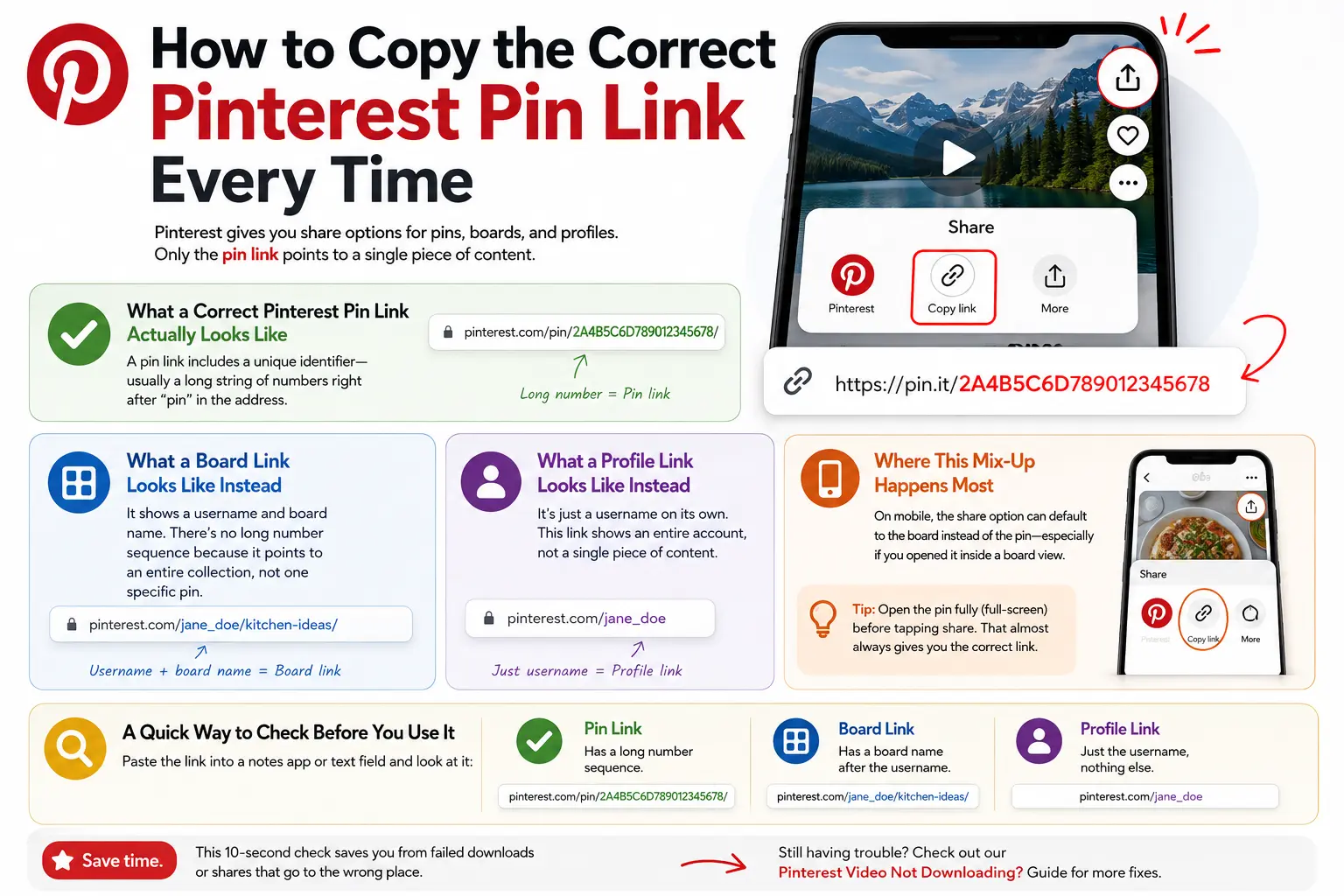
What a Correct Pinterest Pin Link Actually Looks Like
A pin link always includes a specific identifier tied to that one post, usually a long string of numbers right after “pin” in the address. Nothing else on Pinterest carries that identifier, which is what makes it different from every other link on the platform.
Open the pin you want, tap the share icon, and choose copy link. On desktop, the same identifier shows up directly in your browser’s address bar once you click into the pin. If what you copied has a long number sequence in it, you’re holding a real pin link.
What a Board Link Looks Like Instead
A board link follows a completely different pattern. It shows a username followed by the name of the board, with no long number sequence anywhere in it. That format tells Pinterest to load an entire collection of pins, not one specific post.
If you meant to grab a single video or image but ended up with a board link, a downloader has nothing to work with. It’s being pointed at a whole folder instead of one file inside it.
What a Profile Link Looks Like Instead
A profile link is the simplest of the three. It’s just a username on its own, with nothing else attached. This is the link people share when they want someone to see an entire account, not one piece of content from it.
Profile links are the easiest to mistake for something else, since they’re short and clean looking. If your copied link is only a username with no board name and no number sequence, you’ve grabbed the profile, not the pin.
Where This Mix-Up Happens Most
The mobile app is where this trips people up most often. Depending on where you tap share from, the app can default to the board a pin is saved in rather than the pin itself, especially if you opened it from inside someone’s board view instead of your home feed.
This is a common enough mix-up that Pinterest’s own link structure has been documented the same way across several independent guides, not just anecdotally by users. Desktop is more forgiving, since the address bar shows you exactly what you’re looking at before you even copy anything. If you’re ever unsure on mobile, tapping into the pin fully first, so it fills the whole screen on its own, almost always gives you the correct share option.
A Quick Way to Check Before You Use It
Paste whatever you copied into a notes app or an empty text field before using it anywhere. A pin link will have that long number sequence sitting in it. A board link will have a board name after the username. A profile link will be just the username by itself with nothing else attached.
This ten-second check saves the frustration of a failed download or a share that points somewhere you didn’t intend. If you’ve already run into this and a download still isn’t working, our troubleshooting guide covers what else might be going wrong.